Image Formation
Overview
The image_gui interface is designed to load, visualize and process the output files generated by GAMOS. It allows users to convert the energy deposited in each pixel into an image format. The GUI provides a user-friendly interface for loading files, applying parameters, and saving the final image.
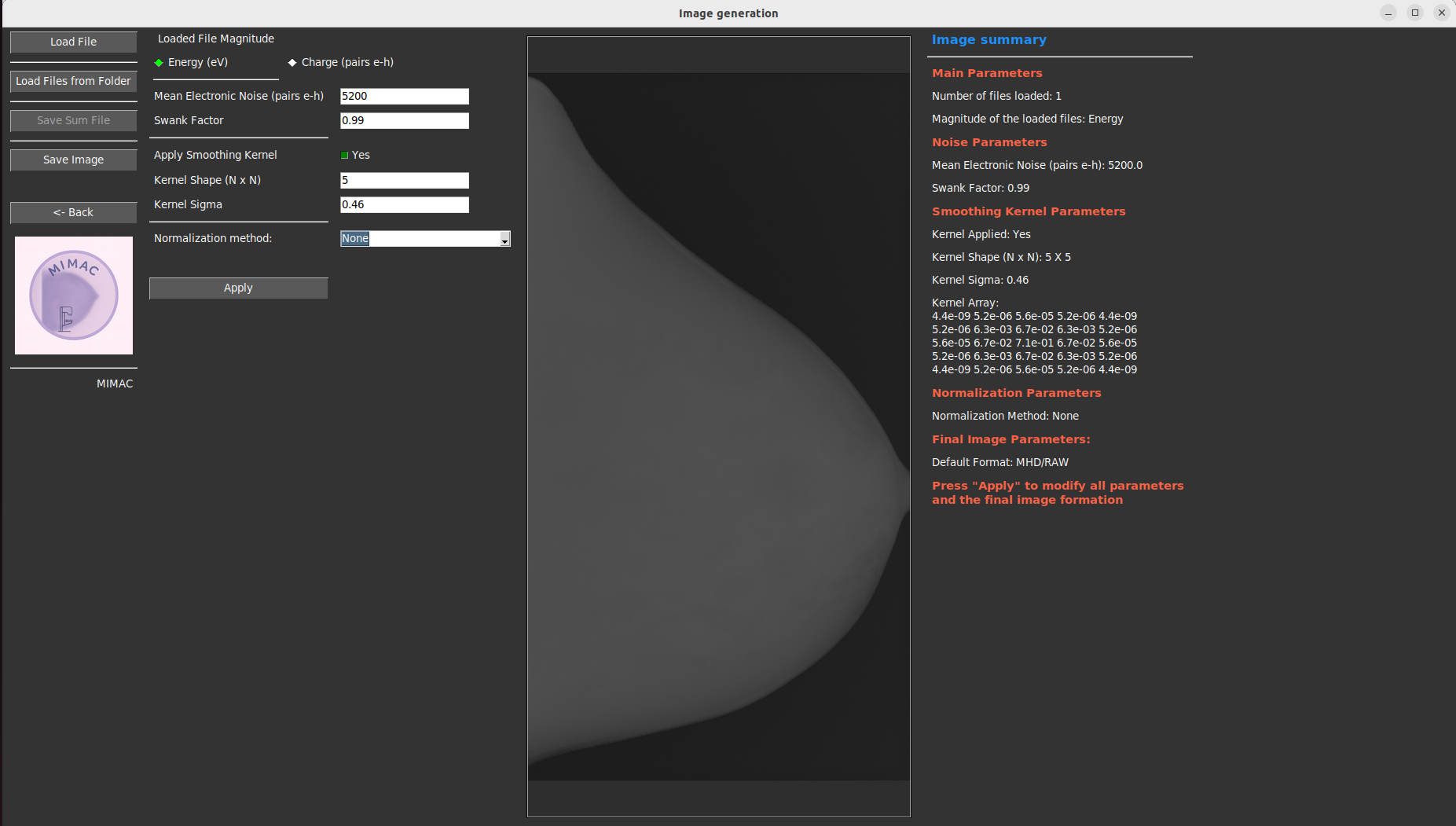
Step-by-Step Instructions
1. Loading Data
- Load File (Button 1):
Opens a dialog to select a single output file from the simulation (
.mhdor.out).The selected file is loaded and displayed in the GUI.
- Load Folder (Button 2):
Opens a dialog to select a folder containing multiple output files.
The GUI will sum the energy deposited in all files within the folder and display the result.
2. Parameter Configuration
Use this panel to configure image processing options:
- Output Type:
This option allows you to select the output magnitude. It can be either Energy or Charge.
The default value is Energy.
If you select Charge, the GUI will convert the energy deposited in each pixel into charge using the following formula:
\[Q = E / \text{e-h pair energy}\]where \(Q\) is the charge, \(E\) is the energy deposited in each pixel, and the e-h pair energy is a constant that can be adjusted in the GUI. - The default value for the e-h pair energy is 50.0 eV per pair e-hole, but you can adjust it based on your requirements.
- Mean Electronic Noise:
This parameter allows you to add electronic noise to the image. The default value is 5200.0.
You can adjust this value to simulate different levels of electronic noise in the image.
If you do not want to add noise, set this value to 0.0.
- Swank Factor:
This parameter allows you to apply a Swank factor to the image. The default value is 0.99.
You can adjust this value to simulate different levels of Swank factor in the image.
- Apply Smoothing Kernel:
This parameter allows you to apply a smoothing kernel to the image.
- Kernel Size:
This parameter allows you to set the size of the smoothing kernel. The default value is 3.
You can adjust this value to change the size of the smoothing kernel applied to the image.
- Kernel Sigma:
This parameter allows you to set the sigma value of the smoothing kernel. The default value is 0.46.
You can adjust this value to change the sigma value of the smoothing kernel applied to the image.
Normalization Method:
This parameter allows you to select the normalization method. The options are:
None: No normalization is applied.
Logarithmic: The image is normalized using a logarithmic scale.
Square Root: The image is normalized using a square root scale.
VICTRE MCGPU SC: The image is normalized using the VICTRE MCGPU Sensitivity Curve.
MCD SC: The image is normalized using the MCD Sensitivity Curve.
VD SC: The image is normalized using the VD Sensitivity Curve.
- Apply Changes
This button applies the changes made in the parameters window to the image displayed.
The image will be updated with the new parameters applied.
- Save Image
This button allows you to save the processed image in either DICOM or MHD/RAW format.
The default format is MHD/RAW, but you can change it to DICOM if needed.
3. Summary Frame
The GUI provides a summary of the parameters applied to the image.
This summary can be found in the right panel of the GUI.